


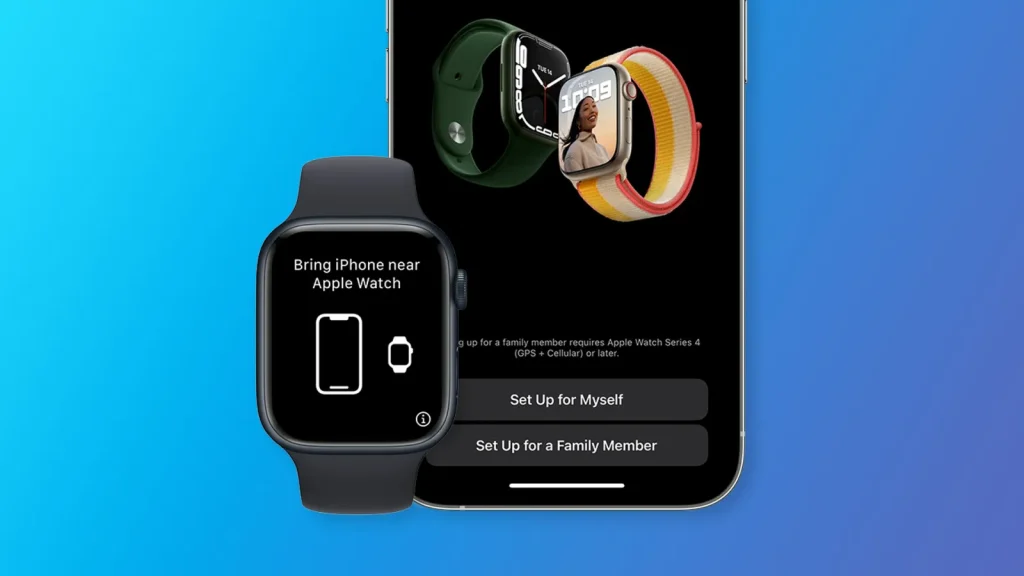
How to find a lost Apple Watch using your iPhone? If you’re anything like us, you frequently misplace your tech. Possibly the most often question asked in the home is “Where’s my phone? Since it is usually connected to your wrist, your Apple Watch is a little harder to lose, but it can still disappear more frequently than is healthy for your sanity.
It’s easy to locate your iPhone using the sound feature on your Apple Watch, but did you know you can also do this in reverse? You may use the Find My app on your phone to make your lost Apple Watch start playing music. Here’s a simple guide on using your iPhone to locate your Apple Watch.
Table of Contents
Demonstration on how to find a lost Apple Watch using your iPhone

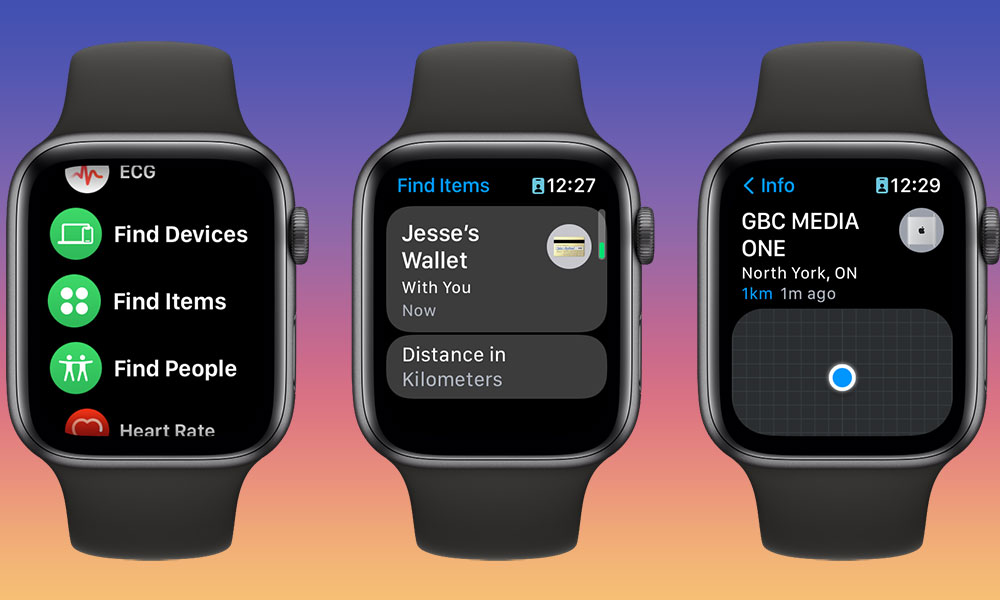
If you know where your Apple Watch is, you can use the Find My app to locate it fast. This enables you to compel your Apple Watch to play a sound if powered on; simply follow the sound to locate your Apple Watch. It’s a practical tip that can spare you hours wasted looking at the sofa’s back.
- Open the Find My app on your iPhone.
- Under Devices tap on select the Apple Watch that you want to find on.
- Tap the Play Sound button.
- Your Apple Watch will begin to vibrate and play a sound after a short period. Your Apple Watch’s backlights will flash as well.
- Listen out for the sound and follow it to locate your Apple Watch.
- Once you’ve located it, use your Apple Watch’s Dismiss button to silence the sound.
- You may also receive an email telling you that a sound was played on your Apple Watch.
How to find your Apple Watch if it is not near you
The earlier tip is quite helpful, but it is only effective when your Apple Watch is in your line of sight. The Find My app can still be useful even if your Apple Watch is completely lost somewhere else.
- Open the Find My app on your iPhone.
- Select the Apple Watch you want to locate under Devices.
- At the top of the screen, you should be able to see the location of your Apple Watch on the map.
- Tap on Directions which guides you to the location of your Apple Watch via the Maps app.
- You can find your Apple Watch by using the technique described above to make it play a sound once you are at the appropriate location.
How to put your Apple Watch in Lost Mode
You should set your Apple Watch into Lost Mode if you can’t find it and it isn’t visible on the Find My map. Your Apple Watch will be locked and any credit or debit cards in your Apple Watch wallet will be disabled. Additionally, if someone discovers it, you can leave a note and phone number that will show up on the Apple Watch display. When the Apple Watch is once more located by the Find My app, you’ll also get a notification.
- Open the Find My app.
- Under Devices, click the missing Apple Watch. No Location Found will be listed if it cannot be located.
- Scroll down and select Mark as Lost, then touch Activate.
- At the bottom of the screen, click Continue.
- Tap Next after entering a contact phone number.
- Tap Next after entering a message that will show up on your watch if anyone finds it.
- If updates are available, enable Notify When Found and Receive Email Updates.
- Tap Activate and then your Apple Watch will be placed in Lost Mode.
- When you open your Apple Watch after being reunited with it, Lost Mode will be instantly disabled.
- By selecting Turn off Mark as Lost from the Activated menu next to the Mark as Lost section of your iPhone’s Find My app, you may easily turn off Lost Mode.
Also Read: Apple iPhone 15 Pro – Release date, price, features, and specification leaks